Views and dashboards
This page is the reference. For a guided tour, see Develop a crew in VS Code.
What CrewForge changes
CrewForge applies only Kubemoot custom resources and Helm releases of them. It never
deletes a namespace or any other kind of object; the operator owns cleanup through
finalizers and owner references. Add
The two views
Click the Kubemoot mark in the activity bar. Two views share the side bar.
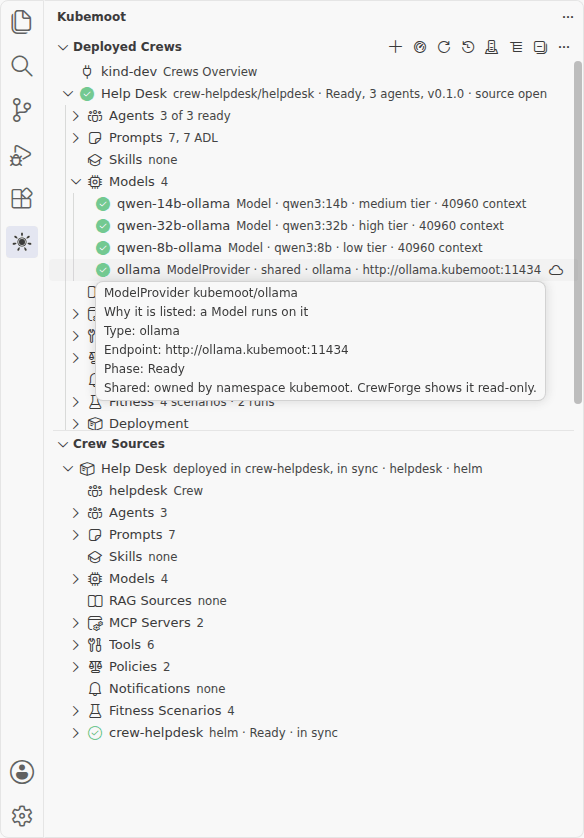
Deployed Crews
The crews running on the cluster. The first items say what CrewForge is connected to and open the Crews Overview; that row stays first. A green mark means ready.
By default the view is a flat list: one row per crew, sorted by namespace and then name.
A row is labeled with the crew’s display name and reads
<namespace>[/<kubernetes name when different>] · <phase>, <N> agents[, vX] · source open|no local source.
The Kubernetes name appears only when it differs from the display name. Hover for its
namespace, labels, creation time, archetype, and status conditions.
Group by Namespace (the list-tree icon on the title bar) nests the crews under their
namespaces. Show as a Flat List switches back. CrewForge remembers the choice for each
workspace. A namespace that cannot be read shows as an error row, “Cannot read namespace
<ns>: <reason>”, in both modes.
Expand a crew to see every part of it, read from the cluster, in this order. A group with nothing in it says none; hover a group for the rule that puts an object in it.
- Agents: the Agents labeled
kubemoot.ai/crewwith the crew, each with its discussion role, the capabilities it asks the scheduler for (never a model name), and whether it is ready. - Prompts: the PromptModules the agents name in
promptRefs, in composition order, each marked ADL or prose, with the agents that use it. A module an agent names that the cluster lacks shows as missing. - Skills labeled with the crew, in order.
- Models: every Model in the crew’s namespace, since the scheduler may bind the agents
to any of them by capability label, then the ModelProviders they run on (looked up in
the crew’s namespace, then
kubemoot). Hover a Model for its model name, capability tier (itslatencyClass), capability labels, and context length. - RAG Sources the agents or skills name, or were matched to by keyword, and the crew’s own, then the EmbeddingModels they embed with. Hover one for what it indexes, its chunking, its embedding model, and when it was last indexed.
- MCP Servers the agents or skills name, installed with the crew, or registered with its gateway, then the namespace’s MCPGateway (the agents use the first one), and the MCPQualityPolicy, MCPCatalog, and MCPServerReport objects they use.
- Tools the agents enable. Each says which MCP server offers it and which agents enable it. The description and input schema come from the gateway’s tool catalog, read through the Kubernetes service proxy; when it cannot be read, the item says so. Click a tool for a read-only page with all of it.
- Policies: the CrewSchedulingPolicy whose
crewRefnames the crew, and the MootArchetype it runs. Hover a policy for what it governs. - Notifications: the NotificationSinks in the namespace that fire for the crew’s agents. The tooltip shows only the webhook’s host.
- Fitness: the scenarios deployed with the crew, then its past runs. See Live Fitness group.
- Deployment: the channel (Helm, Flux, or a kubectl bundle), the chart and version, the release, the Flux object, what a CrewForge deploy recorded (source, revision, who, and when), and the operator’s KubemootConfig.
An object that is not the crew’s own (a ModelProvider in kubemoot, another crew’s
Model, the cluster’s archetype) is marked shared, and its tooltip says who owns it.
CrewForge only shows it.
Live Fitness group
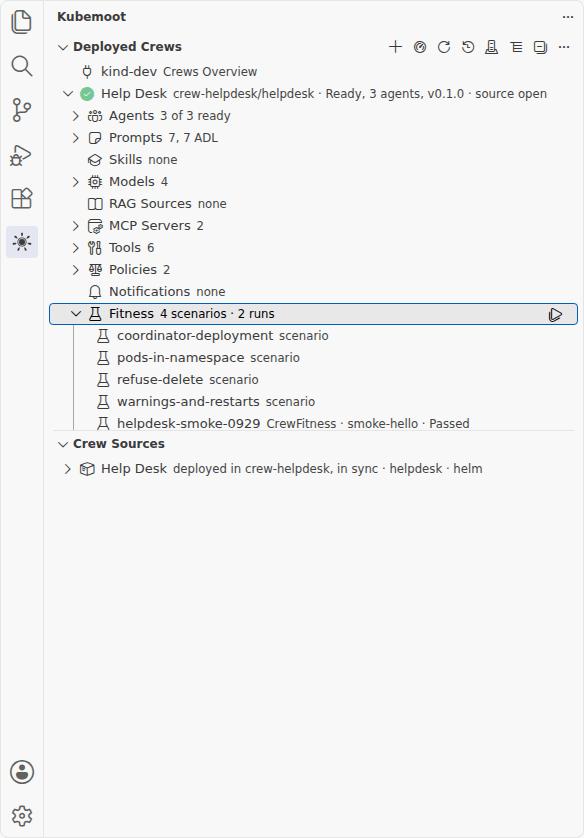
The Fitness group lists the scenarios deployed with the crew, then its past runs.
Scenarios come from the ConfigMaps labeled kubemoot.ai/crew=<crew> and
kubemoot.ai/fitness-kind=scenarios. A key ending in .yaml holds CrewFitness or
CrewFitnessSuite manifests; a key ending in .adl or .md (other than README.md) holds
one script named after the key. The group reads <n> scenarios · <m> runs, plus changed
since deploy when an open workspace source’s scenarios differ from the deployed ones. It
works with no local source open.
Runs from here always use the deployed scenarios, and the tooltips say so. The actions:
- Run All Deployed Scenarios: one click runs every scenario once, as a suite named
<crew>-all-<timestamp>. - Run Scenarios…: a multi-select pick of every scenario with its DESCRIPTION, all
checked, then an iteration count of 1, 3, 5, 10, or another number up to 100. It starts
one CrewFitnessSuite named
<crew>-batch-<n>-<timestamp>, or<crew>-all-...when you keep every scenario. - Run This Scenario Only: one iteration of that scenario.
- Show Scenario Script: opens the script.
- Pause, Resume, and Stop, inline on a run in progress.
Select several scenario rows together and choose Run Selected Scenarios as One Batch to run them as one suite after the iterations prompt. Run Scenarios… and Run Selected Scenarios as One Batch also work in Crew Sources, on a source’s Fitness Scenarios, against its deployment. Each batch is one CrewFitnessSuite, judged together, with one XLSX, and the fitness dashboard opens on it. See Fitness from the editor.
Click any item for its live YAML in a read-only editor. The title bar has Create Crew, Open Crews Overview, Refresh Deployed Crews, Continue a Conversation, and Select Kubernetes Context.
A crew’s row has an Ask button, and its menu holds Open Dashboard, Open Fitness Dashboard, Show Live YAML, Show Bundle YAML (the Crew with its Agents, PromptModules, and Skills in one document), Show Live YAML (raw), Redeploy, Deploy a Git Revision, Run Fitness, Follow Flux Rollout (for Flux), and Undeploy. CrewForge finds a crew’s source among the workspace’s crew sources: the one the Crew names, else the one that renders a crew of its name. When none is open it says so. Undeploy works without a source. A Flux-managed crew changes only through git.
Crew Sources
The crews in your workspace: Helm charts whose templates declare a Kubemoot Crew, and folders of plain manifests that include one (a bundle). Each source reads as its crew’s display name, with where it stands on its line: deployed in crew-helpdesk, changed, deployed in crew-helpdesk, in sync, or not deployed.
Each source expands to what it declares, in the same groups as Deployed Crews: the Crew, Agents, Prompts, Skills, Models, RAG Sources, MCP Servers, Tools, Policies, Notifications, and Fitness Scenarios. Click an object to open its file at that object. Something the source names but does not declare, such as the ModelProvider its Models run on, shows as shared, installed elsewhere, or as not in this source when it should be there. After the groups come its deployments, one per namespace. A source can be deployed to many namespaces.
To define more of the crew, use Add templates/ labeled with the crew (with the chart’s
common-labels helper when it has one); in a bundle, a YAML file beside the Crew in its
namespace. The file opens, the object appears in the tree, and Lint checks it.
Remove from Source… on a declared object moves its file to the trash, or takes its
document out of a file that holds others, after a confirmation that names anything that
still refers to it. An object a template loop makes, such as a Model from values.yaml,
is refused: change the values instead. Nothing in the cluster changes until the next
deploy; the operator cleans up after a removed object.
Under each deployment:
- Drift: the Kubemoot objects whose spec differs from the source, missing ones, and extra ones. Click one for a diff between live and source. A Flux-managed deployment renders with its HelmRelease values and shows the release state.
- A Fitness node listing its fitness runs. See Fitness from the editor.
The view follows the file system, so adding, renaming, or deleting a crew folder or one of its files updates it by itself. Refresh stays on the title bar as a fallback. A source whose render fails shows the error as an item.
The title bar has Create Crew (the +) and Refresh Crew Sources. Create
Crew asks for a display name, then a Kubernetes name (prefilled from the display name and
editable), a size from 1 to 5 (the number of specialists beside the
coordinator: workloads, then events, networking, config, and a reviewer), and a
model family (or none, to add Models yourself), and needs a current kmctl release (one whose kmctl create takes --display-name). In the
Explorer, New Kubemoot Crew Here is on folders outside crew sources and View in
CrewForge is on files and folders inside one.
Dashboards
Dashboards open as editor tabs with the Kubemoot mark. They read again every few seconds while visible, and the fitness dashboard reads more often while a run is going. They are read-only pages: they show data and can only ask the extension to run one of its own buttons.
Crews Overview
Open it from the dashboard icon on Deployed Crews, CrewForge: Open Crews Overview, or the first item of Deployed Crews. It is a table of every deployed crew your kubeconfig can see: name, namespace, phase and readiness, agents ready out of total, chart version, channel (helm, bundle, flux), last deploy time, the turn answering now, recent problems, and whether a local source is open. Click a crew for its dashboard. The header says what CrewForge is connected to. The Kubernetes name sits beside the display name.
Where the display name shows
A crew’s display name is the name people read. It appears in the Deployed Crews and Crew
Sources labels, the crew dashboard’s heading and tab title (with the Kubernetes name beside
where it runs), the fitness dashboard’s tab (<display name> fitness) and heading, the
chat’s tab title and heading (the Kubernetes name shows on hover and beside the namespace),
and the Crews Overview table. A crew without a display name shows its Kubernetes name.
Crew dashboard
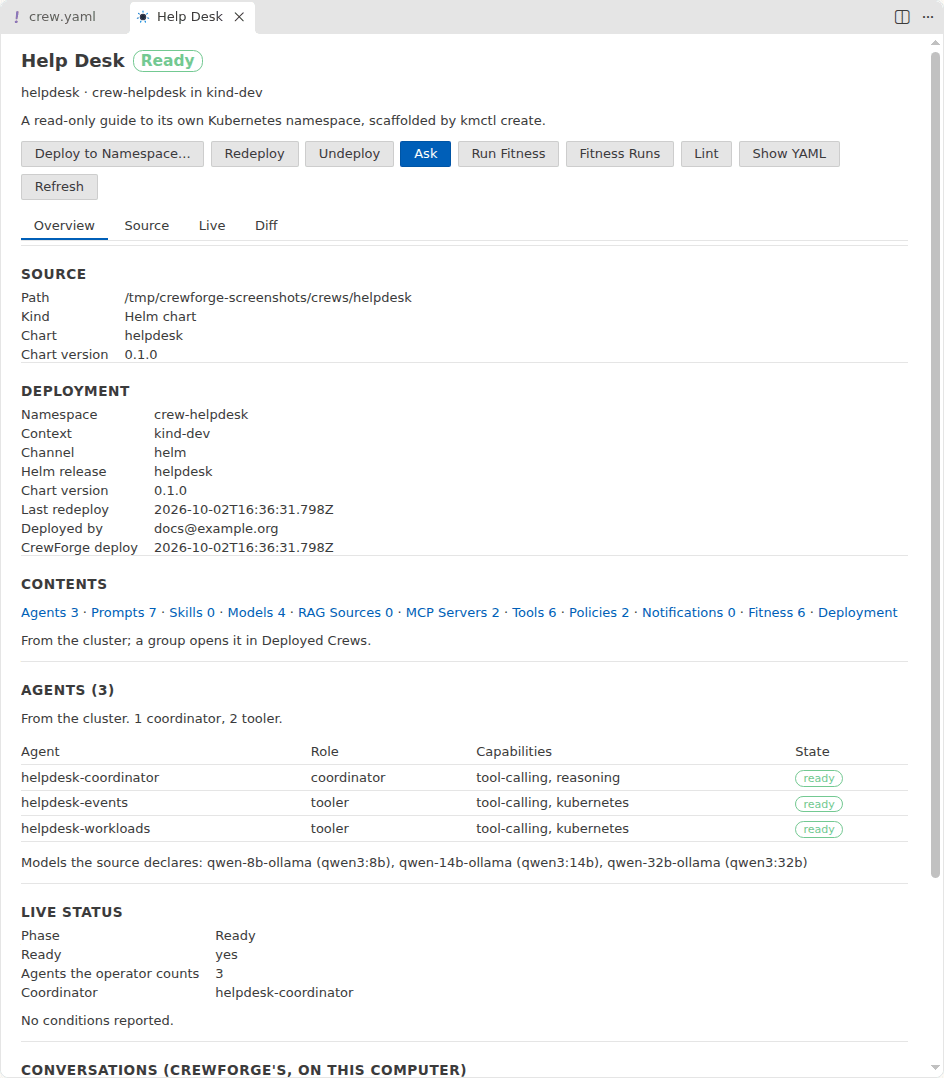
Click a crew in Crew Sources or Deployed Crews. The tab is titled with the crew’s display name. Its buttons are Deploy to Namespace…, Redeploy, Undeploy, Ask, Run Fitness, Fitness Runs, Lint, Show YAML, and Refresh. A button that does not apply is disabled, with the reason in its tooltip. Four tabs sit under the buttons.
Overview shows:
- the crew’s name and description;
- the source: path, chart name, chart version, and app version;
- the deployment: namespace and context, channel, Helm release, deployed chart and app version, first deploy and last redeploy, and what a CrewForge deploy recorded;
- the contents: how many objects each group holds, from the cluster when the crew is deployed, else from the source. Click a group to select it in the tree;
- the agents, counted by role, with the capabilities each declares and whether each is ready, followed by the Models the source declares;
- the Crew’s phase, message, and status conditions;
- your conversations with it on this computer: conversations, turns, the turn answering now, and the newest problems saved with a turn;
- from the Kubemoot dashboard, the number of discussion threads and agent failures.
A banner says when the source’s chart version differs from the deployed one.
Source lists the objects the local source renders, grouped by kind. Click one to open its file at the object.
Live lists the crew’s objects as the cluster holds them, normalized the same way as Compare with Live. Show Raw shows everything the API server holds, status included.
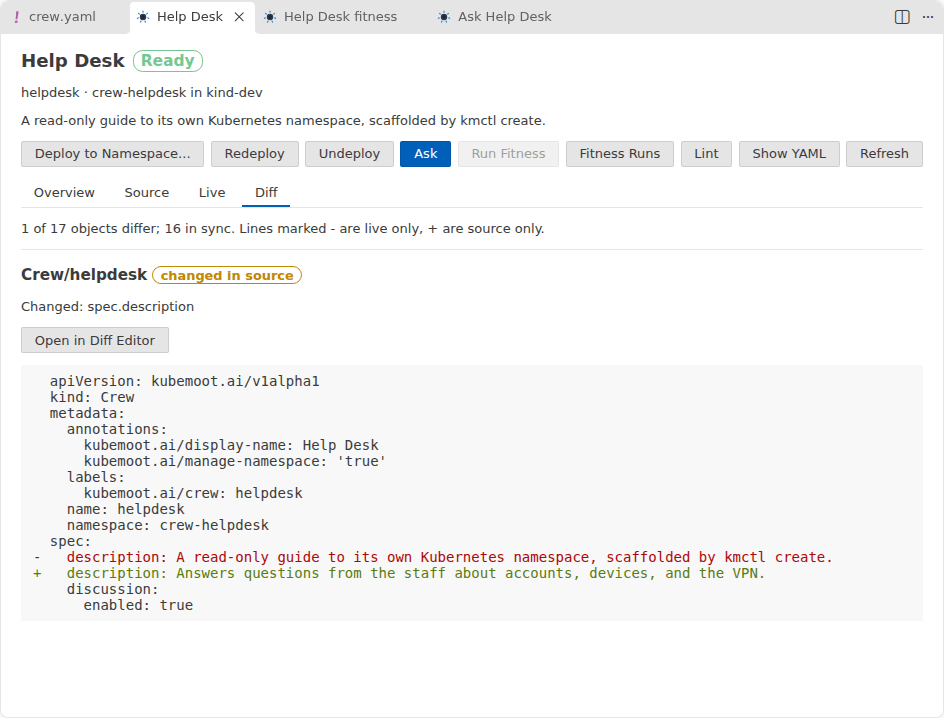
Diff lists each object that is changed, missing in the cluster, or extra in it, with
the normalized diff inline: lines marked - are live only and lines marked + are
source only. Open in Diff Editor opens the same comparison in VS Code’s diff view.
A tab whose side is missing says why and offers the way to it: Open the Crew’s Source Folder… when no source is open, Deploy to Namespace… when the crew is not deployed, and Select Kubernetes Context when the cluster cannot be reached.
Fitness dashboard
Click a Fitness node, a run, or Open Fitness Dashboard. The tab reads
<display name> fitness and the heading Fitness: <display name>. It shows the crew’s runs and the selected one in detail, with
Pause, Resume, and Stop. A live crew that carries deployed scenarios can run
from here without a source. See
Fitness from the editor.
Where the numbers come from
The Kubernetes API supplies Crews, Agents, and every other Kubemoot object of a crew,
fitness runs and their iterations, the operator Deployment, the server version, and the
CRD schema. The MCP gateway’s tool list, read through the Kubernetes service proxy,
supplies each tool’s description and input schema. helm status supplies
release times. CrewForge’s saved conversations supply the conversation counts. The
optional Kubemoot dashboard, read through the Kubernetes service proxy, supplies
discussion threads, agent failures, and a suite’s scores and iterations. Without it,
those parts say they are not available.
Compare with Live, Show Source, and Show Live
Each deployment lists its objects with a state: in sync, changed in source, in source but
not deployed, or deployed but not in source. The diff is normalized so only what a person
wrote can differ. Both sides leave out status, the server’s bookkeeping (managed
fields, resource version, uid, generation, creation timestamp, finalizers), the
annotations Helm, kubectl, and CrewForge add, and the labels releases stamp. Every map’s
keys are sorted. When the source’s chart version differs from the deployed one, a banner
says so, for example “source 0.2.2, deployed 0.46.0-rc.0”.
To look at one side alone, use a resource’s menu or the diff editor’s title bar:
- Show Source YAML: the object as the source renders it, read-only, with a link that opens its source file at the object.
- Show Live YAML: the cluster’s object, normalized the same way.
- Show Live YAML (raw): everything the API server holds, status and all.
With the Red Hat YAML extension installed, Kubemoot manifests are also checked against your cluster’s own schema as you type.
The chat
Choose Ask on a crew. The chat opens beside the view, one panel per crew. A narrow panel keeps messages readable, and the conversations list opens over the chat from the menu button.
- Sending. The send button shows once there is text to send and the crew can take it. While the crew answers, Stop takes its place; Enter never stops a turn. When the crew is not ready, in an error state, or out of reach (the cluster, or its discussion gateway), sending waits and the reason shows above the input, such as “The crew is not ready: phase Pending”.
- Progress. Each agent has a card while a turn runs. A card turns red when its agent failed or could not run.
- Answers. The crew’s answer is rendered as Markdown, with its time and how long the
crew took, for example
03:36 PMand42 s. - Failures stay visible. When the turn ends, anything that went wrong stays under the answer: an agent that failed, could not run, or had not finished, a gateway error, a timeout, or a stop. It is saved with the conversation.
- Message actions. Under each message, a row of buttons appears on hover or keyboard focus. For your question: Copy, Ask again (sends it as a new turn), and Edit and resend (puts it back in the input). For the crew’s answer: Copy (its Markdown) and Ask the question again.
- Conversations. A conversation is named after its first question. The buttons in a chat’s header Rename it, Delete it from this computer (after asking; the crew is not changed), copy the whole conversation as Markdown, and save it as Markdown. CrewForge: Continue a Conversation reopens a saved one, and CrewForge: Open Conversations Folder shows where they are kept.
- Export Conversation as Markdown. With a chat panel open, run CrewForge: Export Conversation as Markdown from the Command Palette. A save dialog offers a file named for the crew and the conversation title, and the file holds the whole conversation as Markdown, the same text the chat header’s save button writes. The command appears in the palette only while a chat panel has focus; run elsewhere it has nothing to export.
- Ask about code. Select code in an editor and choose Ask a Crew about the Selection from the editor’s context menu. Pick a crew; its chat opens with the selection in the input, fenced and labelled with its file and language, ready for your question.
- Powered by Kubemoot opens the Kubemoot dashboard when
crewforge.dashboardUrlis set.
In the editor
Status bar, crew. While a file of a crew source is open, an item names the crew and where it stands: not deployed, deployed in a namespace and in sync, or deployed and changed. Click it for the next steps.
Next Steps… The menu behind the crew item in the status bar, also available as CrewForge: Next Steps… in the Command Palette. It lists what makes sense for the crew’s state, so the next move is one pick away:
The crew is The menu offers Not deployed Deploy to Namespace…, Lint, Change the Namespace Redeploy Uses… Deployed, changed since deploy Redeploy, Lint, Ask, Run Fitness, Change the Namespace Redeploy Uses… Deployed and in sync Ask, Run Fitness, Show in the Deployed Crews view, Lint, Change the Namespace Redeploy Uses… State unknown Check the state again, Deploy to Namespace…, Lint, Change the Namespace Redeploy Uses… Each pick runs the same action as its button elsewhere. The command needs a crew source: with a file of a source open it acts on that crew, otherwise it asks which source.
Status bar, connection. The context CrewForge uses. Click it to switch. See Install and connect.
Code lens. In an open crew manifest, a lens above the Crew offers Ask in each namespace it is deployed to, and every other Kubemoot object shows its drift state in each deployment where it was compared. Click one for the diff.
Problems panel. Lint findings, on the file and line they concern.
Explorer. New Kubemoot Crew Here and View in CrewForge.
Editor context menu. Ask a Crew about the Selection.
Action reference
| Action | When to use it | What it changes |
|---|---|---|
| Create Crew / New Kubemoot Crew Here | Start a new crew | A new chart folder on disk, written by kmctl create --display-name ... --chart: the starter crew, a read-only guide to its namespace, with 1 to 5 specialists as you choose. Nothing on the cluster. |
| Deploy to Namespace… | Deploy a crew, here or to one more namespace | helm upgrade --install (a bundle: kubectl apply --server-side) into the namespace you pick. The last one, else crew-<name>, is offered, and Redeploy then uses it. Records the source on the Crew and waits until it is ready. |
| Redeploy (on a source) | After editing a deployed crew | The same release in the namespace you last deployed to, upgraded from the source. Waits for the agents again. |
| Redeploy (on a deployment or a deployed crew) | A deployment is behind its source | That deployment, through the channel it came by. A bundle applies only the objects that differ. |
| Deploy with a Channel… | Pick the channel too, such as Flux | A Helm release or bundle in the namespace you name. For Flux, nothing: it tells you to commit and push. A namespace where Flux or a bundle already owns the crew is refused. |
| Apply Only This Object (kubectl apply) | One changed or missing object of a bundle | That one Kubemoot object. |
| Deploy a Git Revision (Roll Back or Forward) | Go back to, or forward to, a committed version | The deployment, rendered from that commit. Your working tree is not touched. |
| Follow Flux Rollout (GitOps channel) | A crew Flux manages, after you push | Nothing. It follows the HelmRelease until it settles. |
| Undeploy | Take a crew out of a namespace | helm uninstall of its release, or deletes the Kubemoot objects the bundle renders. The operator’s finalizers clean up the rest. The namespace stays unless the Crew and the namespace opt in to its deletion. |
| Delete Source… (move folder to trash) | Throw away a crew you no longer want | The source folder moves to your trash after a confirmation that names it. If the crew is deployed, it offers to undeploy first. A workspace folder, or a folder holding another crew source, is refused. The cluster does not change otherwise. |
| Rename… > Change the Display Name | Change the name people read | The kubemoot.ai/display-name annotation in the source (and Chart.yaml for a chart), and on each deployed copy right away, with no redeploy. A copy Flux deploys takes it from git: commit and push. |
| Rename… > Change the Kubernetes Name… | Give a crew a new Kubernetes name | The chart name, the Crew, every name built on the crew’s (agents, PromptModules, policy, fitness suites) and the references to them, and the folder when it carries the crew’s name. Other keys, prompt text, and .tpl helpers stay as they are. A deployed crew keeps its old name: redeploy to deploy the new one, and undeploy the old one. |
| Compare Source with Live (normalized diff) | See how a deployed object differs from its source | Nothing. |
| Show Source YAML / Show Live YAML / Show Live YAML (raw) | Look at one side alone | Nothing. |
| Lint (helm lint and schema check) | Before deploying, or any time | Nothing. Findings go to the Problems panel. |
| Add | Define another part of a crew: an Agent, a PromptModule, a Model, a RAG source, and so on | A new file in the source, opened in the editor and linted. Nothing on the cluster until you deploy. |
| Remove from Source… | Take a part out of a crew’s source | Its file moves to the trash, or its document leaves a file that holds others, after a confirmation. Nothing on the cluster until you deploy. |
| Show Tool Details | See where a tool comes from and what it takes | Nothing. A read-only page. |
| Ask | Try a deployed crew | Nothing on the cluster. The chat is a discussion turn. |
| Run Fitness | Measure a deployed crew | Creates a fitness run (a Kubemoot object) in the crew’s namespace. On a live crew it runs the deployed scenarios when it carries any, else the source’s definitions. |
| Run All Deployed Scenarios / Run Scenarios… / Run Selected Scenarios as One Batch | Measure a deployed crew’s scenarios as one batch | One CrewFitnessSuite in the crew’s namespace, named <crew>-all-<timestamp> or <crew>-batch-<n>-<timestamp>. |
| Run This Scenario Only | Try one scenario after changing a prompt | One fitness run of one scenario, one iteration, marked so its dashboard offers Stop. |
| Add / Rename / Delete Fitness Scenario | Grow or tidy a crew’s scenarios | Local files in the fitness folder only. Delete moves a file to the trash after a confirmation. |
| Pause / Resume / Stop (fitness dashboard) | Hold or end a running suite | Sets spec.suspend or spec.cancel on the suite. See Fitness from the editor. |
| Next Steps… | Unsure what comes next for a crew source | Nothing itself. It lists the actions that fit the crew’s state, and runs the one you pick. |
| Export Conversation as Markdown | Keep or share a chat | A Markdown file at the place you choose. The conversation and the crew do not change. |
| Open Dashboard / Open Crews Overview / Open Fitness Dashboard | See a crew, every crew, or a crew’s fitness at a glance | Nothing. |
| Select Kubernetes Context / Select Kubeconfig File / Show Connection Info | Choose or check the cluster | Nothing on the cluster. |
helm, kubectl, and git come from your PATH. CrewForge runs them with its kubeconfig
and context. Lint reads the Kubemoot schemas from the cluster’s OpenAPI. Without a
reachable cluster it lints with helm lint and the render alone, and says the schema
check was skipped.