Install and connect
CrewForge installs from a .vsix file and connects through the kubeconfig you already
use. This page covers the prerequisites, the install, how CrewForge chooses a cluster,
and what it tells you when it cannot reach one.
Prerequisites
| You need | For |
|---|---|
| VS Code 1.95 or later | Running the extension. |
| A kubeconfig with access to a cluster that runs the Kubemoot operator | Everything. CrewForge lists the crews your account can read. |
kubectl on your PATH | Deploying a bundle of plain manifests (kubectl apply --server-side). |
helm on your PATH | Deploying a crew chart, and Lint. Without it, Lint says where to get it. |
kmctl on your PATH, a current release (its kmctl create takes --display-name) | New Kubemoot Crew Here and Create Crew, which run kmctl create --chart to scaffold the starter crew. CrewForge checks kmctl before it asks you anything and names the minimum it needs. |
git on your PATH (optional) | Recording the revision a crew was deployed from, and deploying an earlier commit. |
Browsing crews and chatting need only the kubeconfig. Developing a crew needs the rest. Your account’s cluster permissions are listed in Settings and permissions.
Install
- Download
crewforge-<version>.vsixfrom the extension’s GitHub releases. - Install it, either way:
- In VS Code, run Extensions: Install from VSIX… from the Command Palette and choose the file.
- Or from a terminal:
code --install-extension crewforge-<version>.vsix.
The Kubemoot mark (the round table) appears in the activity bar.
CrewForge runs where your folder is open. In a WSL or other remote window, install it
into the remote: run Extensions: Install from VSIX… while connected to the remote,
or run code --install-extension from a terminal inside it. The extension then reads the
kubeconfig, and runs helm, kubectl, and kmctl, on the remote machine, so those
tools and the kubeconfig must be there.
Marketplace and Open VSX listings are coming. Until then, install from the release file.
Connect to a cluster
CrewForge reads the kubeconfig from, in order:
- the
crewforge.kubeconfigsetting; - every file in the
KUBECONFIGenvironment variable, merged the waykubectlmerges them; ~/.kube/config.
It uses the kubeconfig’s current context unless the crewforge.context setting names
another.
- CrewForge: Select Kubeconfig File points CrewForge at a different file.
- CrewForge: Select Kubernetes Context (the server icon on the Deployed Crews view, or the connection item in the status bar) switches cluster.
If your account may read only some namespaces, set crewforge.namespaces so CrewForge
asks only for those. See Settings and permissions.
What you are connected to
The status bar always shows the context CrewForge uses, with the kubeconfig file’s name when it is not the default.
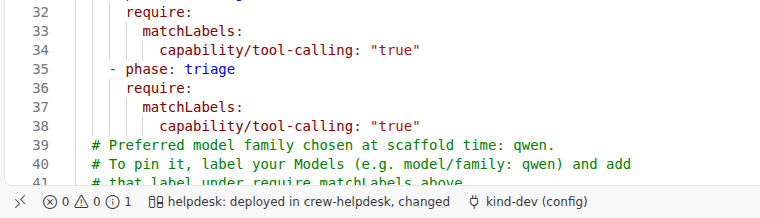
Click the connection item to switch context. Its tooltip, the first item of Deployed Crews, the Crews Overview header, and CrewForge: Show Connection Info all give CrewForge’s version, the Kubemoot operator’s version, the Kubernetes server version, and the context and server address. Show Connection Info has a Copy button for bug reports.
When the cluster cannot be reached
CrewForge says what went wrong in plain words, with the context and the server it tried. The trees, the status bar, the dashboards, Show Connection Info, and error notifications all offer Select Kubernetes Context. The raw error stays in the tooltip or under Details.
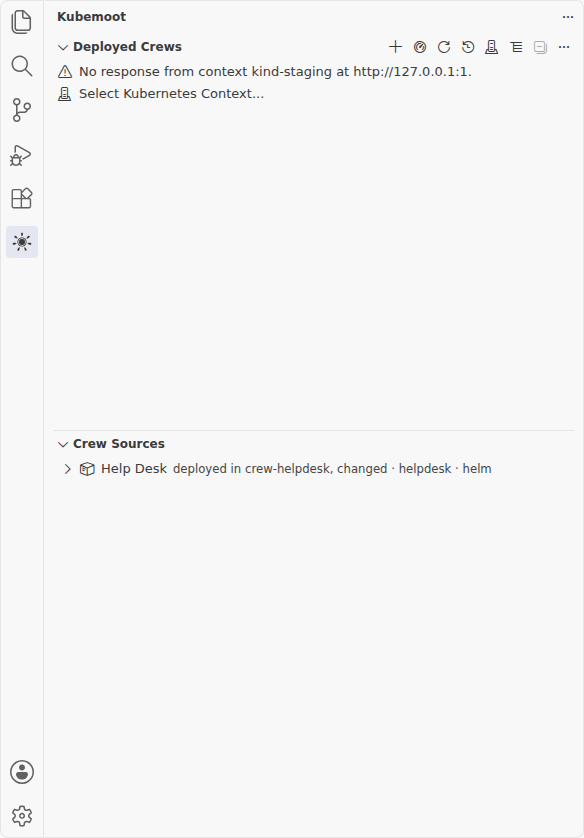
| CrewForge says | What it means |
|---|---|
| No response from context X at URL. Is the cluster running? | The connection was refused. The cluster, or the port-forward in front of it, is not running. |
| No answer in time from context X at URL. Is the cluster running, and can this computer reach it (network, VPN)? | The request timed out. Check the network or VPN. |
| Cannot find the server of context X: its host name does not resolve. | DNS cannot resolve the server address in the kubeconfig. |
| The connection to context X was cut. The API server may be restarting. | The connection reset. Try again in a moment. |
| The server of context X presented a certificate this kubeconfig does not trust. | The kubeconfig may be for another cluster, or its CA data is out of date. |
| Context X did not accept your credentials. | The token expired. Get a fresh kubeconfig or log in again. |
| Your account in context X is not allowed to do this. | The cluster refused the request; its answer names what was denied. |
| CrewForge could not get credentials for context X from the kubeconfig. | A login plugin (gcloud, aws, kubelogin) failed or is missing. |
A request that gets no answer from the API server for 20 seconds fails with one of these messages instead of waiting on the operating system. Chat streams are not limited that way.
If a crew list is empty and no message appears, the context is reachable but shows no
crews. The view offers Select kubeconfig and Select context. Also check
crewforge.namespaces and your account’s permissions.
Next
- Develop a crew in VS Code: create, deploy, and test your first crew.
- Troubleshooting: a page that stays on “Reading…”, a missing tool, a schema mismatch, and where the logs are.