Develop a crew in VS Code
This guide walks the whole loop on one small example: a helpdesk crew scaffolded from
the starter crew, a read-only guide to its own Kubernetes namespace. You create it, change
it, deploy it to a namespace, ask it something, and redeploy after an edit. Everything happens in
the editor, without GitOps: CrewForge deploys with Helm straight to a namespace, and
never commits or pushes. Flux rollouts stay the outer loop.
You need CrewForge connected to a cluster that runs the Kubemoot operator, with helm
and a current kmctl release on your PATH. See Install and connect.
1. Create the crew
Right-click a folder in the Explorer and choose New Kubemoot Crew Here. The entry appears only on folders that are not already inside a crew source. You can also click the + on the Crew Sources view and pick a folder; the folder of your active file comes first.
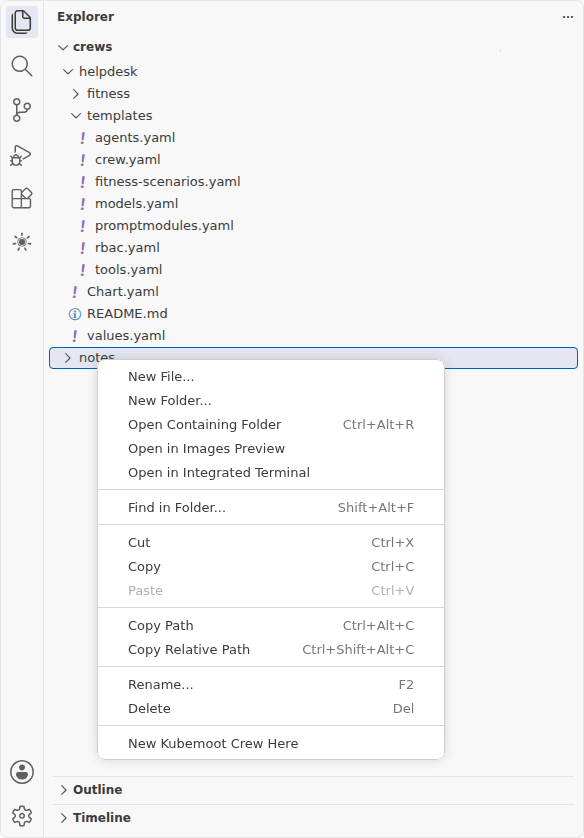
CrewForge asks for these, in order:
- A display name: the name people read, any text, for example
Help Desk,Homelab Health Guide, orLab-Ops Crew #2. - A Kubernetes name, in a second input prefilled with a name derived from the display name. You can edit it. It becomes the Kubernetes name of the crew’s objects, so CrewForge checks it: “Use lowercase letters, digits and hyphens, starting and ending with a letter or digit; it becomes the Kubernetes name of the crew’s objects.” It also says “Keep it to 36 characters” when the name is longer.
- How many specialists to start with, 1 to 5. The scaffold adds a coordinator and that
many specialists, so
2gives three agents. Each size is a working crew; it adds the next specialist in this order:Size Adds 1 workloads: Pods, Deployments, ReplicaSets, StatefulSets, Jobs2 events: Warning events, restarts, recent failures3 networking: Services, endpoints, routes, NetworkPolicies4 config: ConfigMaps, ServiceAccounts, Secret references5 reviewer: checks the answer against the gathered data - A model family:
qwen,gemma,llama, ormistral, ornoneto add Models yourself.
The derived Kubernetes name follows these rules: lowercase; accented letters become their
ASCII spelling (the accented e becomes e, the German sharp s becomes ss, and letters
such as the ligature ae, o with a stroke, l with a stroke, eth, and thorn become ae, o,
l, d, and th); every run of other characters becomes one hyphen; no hyphen at either
end; at most 36 characters; and crew when nothing is left.
| Display name | Kubernetes name |
|---|---|
Homelab Health Guide | homelab-health-guide |
Lab-Ops Crew #2 | lab-ops-crew-2 |
| A Japanese name with no ASCII letters | crew |
Creating a crew needs a kmctl whose create takes --display-name. CrewForge checks
kmctl create --help first and names the problem in a modal before it asks anything.
CrewForge then runs kmctl create helpdesk --display-name "Help Desk" --chart and writes the crew as a Helm chart
in a folder named helpdesk. kmctl asks the cluster which model providers exist and
generates Models for them.
What you see: the new crew is selected in Crew Sources, its README.md opens with
templates/crew.yaml beside it, and a notification offers Deploy to Namespace….
The chart holds:
helpdesk/
  Chart.yaml
  values.yaml
  README.md
  templates/
    crew.yaml            the Crew and its scheduling policy
    agents.yaml          the coordinator and the specialists
    promptmodules.yaml   what each agent is told
    models.yaml          the Models the scheduler can bind agents to
    tools.yaml           the read-only Kubernetes MCP server and its gateway
    rbac.yaml            the Role the tool server runs with
    fitness-scenarios.yaml   a ConfigMap carrying the fitness scenarios
  fitness/
    fitness.yaml         a starter fitness suite
The crew works as scaffolded. The tool server is read-only and its Role allows only
get, list, and watch in the crew’s namespace, with no Secret access. The fitness
suite has 3 scenarios at size 1 and up to 7 at size 5, and they pass on a fresh install.
The starter crew guide describes it in full.
The fitness suite sits outside templates/ on purpose, so installing the chart does not
start a run. The scenarios do ship in templates/fitness-scenarios.yaml, a ConfigMap
labeled kubemoot.ai/crew and kubemoot.ai/fitness-kind: scenarios, so a deployed crew
carries them and CrewForge can run them without the source. A ConfigMap starts nothing.
2. Understand what it declares
Expand helpdesk in Crew Sources. CrewForge renders the chart and lists what it
declares, group by group:
- the Crew,
- its Agents, each with its role and capabilities,
- the Prompts (PromptModules) the agents compose, in order, marked ADL or prose,
- Skills,
- the Models the scheduler can bind the agents to, and the ModelProvider they run on, marked shared, installed elsewhere because the cluster provides it,
- RAG Sources, MCP Servers, and the Tools the agents enable,
- Policies: the scheduling policy and the archetype it runs,
- Notifications,
- Fitness Scenarios, from the
fitness/folder, - then its deployments. A new crew shows not deployed.
A group with nothing in it says none. Hover a Model for its model name, capability tier, and context length, or a policy for what it governs.
Click any of them to open its file at that object. The view follows the file system: adding, renaming, or deleting a file updates it without a refresh. When the chart does not render, the error is an item in the tree, and clicking it opens the file and line when the error names one.
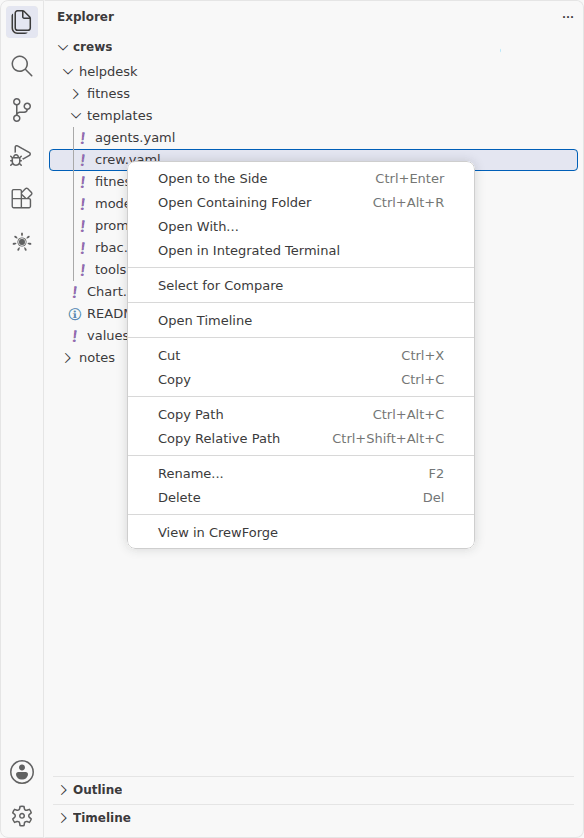
To go the other way, right-click any file or folder of a crew in the Explorer and choose View in CrewForge. It selects the matching item in Crew Sources and opens the crew’s dashboard.
3. Edit it
Open templates/crew.yaml and give the crew a real description. Then open
templates/promptmodules.yaml and change one rule in a specialist’s PromptModule, or in
the coordinator’s synthesis-prompt, which shapes the final answer. For example, add
ALWAYS end with a one-line summary that starts "In short:" to synthesis-prompt. Deploy
it (step 5), ask the crew List the pods in this namespace, and the answer ends with that
line. To point the crew at a domain of your own, rewrite each specialist’s resume in
templates/agents.yaml and its tools in templates/tools.yaml.
To add a part, use Add templates/agent-<name>.yaml in the shape of the
chart’s other templates, opens it, shows it in the tree, and lints the chart.
Remove from Source… on an object takes it out again, after a confirmation.
Whenever a file of the crew is open, the status bar names the crew and where it stands:
- not deployed,
- deployed in crew-helpdesk, in sync, or
- deployed in crew-helpdesk, changed.
Click it for the next steps in that state. Above each object in a crew manifest, a code lens shows the same drift check.
Rename a crew
Right-click a crew source and choose Rename…. A picker offers two choices:
- Change the Display Name: what people read; no redeploy. CrewForge edits the Crew’s
kubemoot.ai/display-nameannotation in the source file (and inChart.yamlfor a chart), and sets it on each deployed copy right away, without a redeploy. A copy that Flux deploys takes the new name from git, so commit and push the change. - Change the Kubernetes Name…: renames every object built on it: the chart, the Crew, the agents, the prompt modules, the policy, and the fitness suites. A deployed crew keeps the old name until you redeploy it as a new crew. A display name that was the old Kubernetes name follows the new one.
4. Lint it
Choose Lint from the crew’s menu in Crew Sources or from the status bar menu. Lint
runs helm lint, renders the chart, and checks every Kubemoot object against the schemas
your cluster serves. Findings land in the Problems panel, on the file and line they
concern.
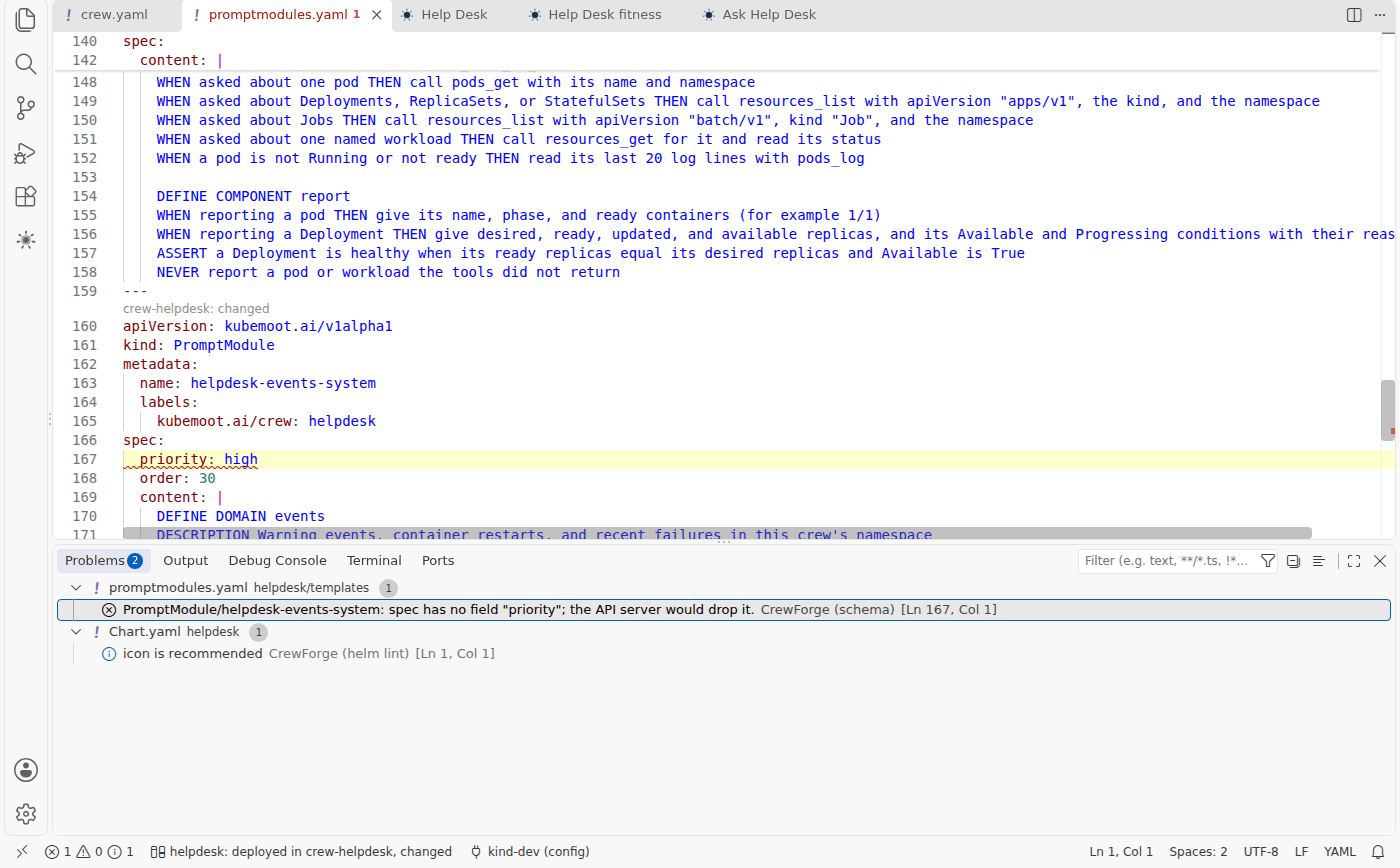
A field the CRD does not define is the most common finding. Saving a file of the crew lints it again once your saves settle, so the Problems panel keeps up as you type. A clean chart reports Lint: helpdesk has no problems.
5. Deploy it
Choose Deploy to Namespace… (the rocket on a source). CrewForge asks for a
namespace on the current context. It offers the last one you picked for this source,
and crew-helpdesk the first time. Then it runs:
helm upgrade --install helpdesk <chart folder> --namespace crew-helpdesk --create-namespace
A bundle of plain manifests deploys with kubectl apply --server-side instead.
What you see: a progress notification that follows the crew until the operator has seen the deploy and the Crew and all its agents report ready. Cancel the notification to stop following; the deploy itself is already done. Then CrewForge selects the crew in Deployed Crews, and the source’s line reads deployed in crew-helpdesk, in sync. A crew or agent that fails says so.
Click the crew for its dashboard.
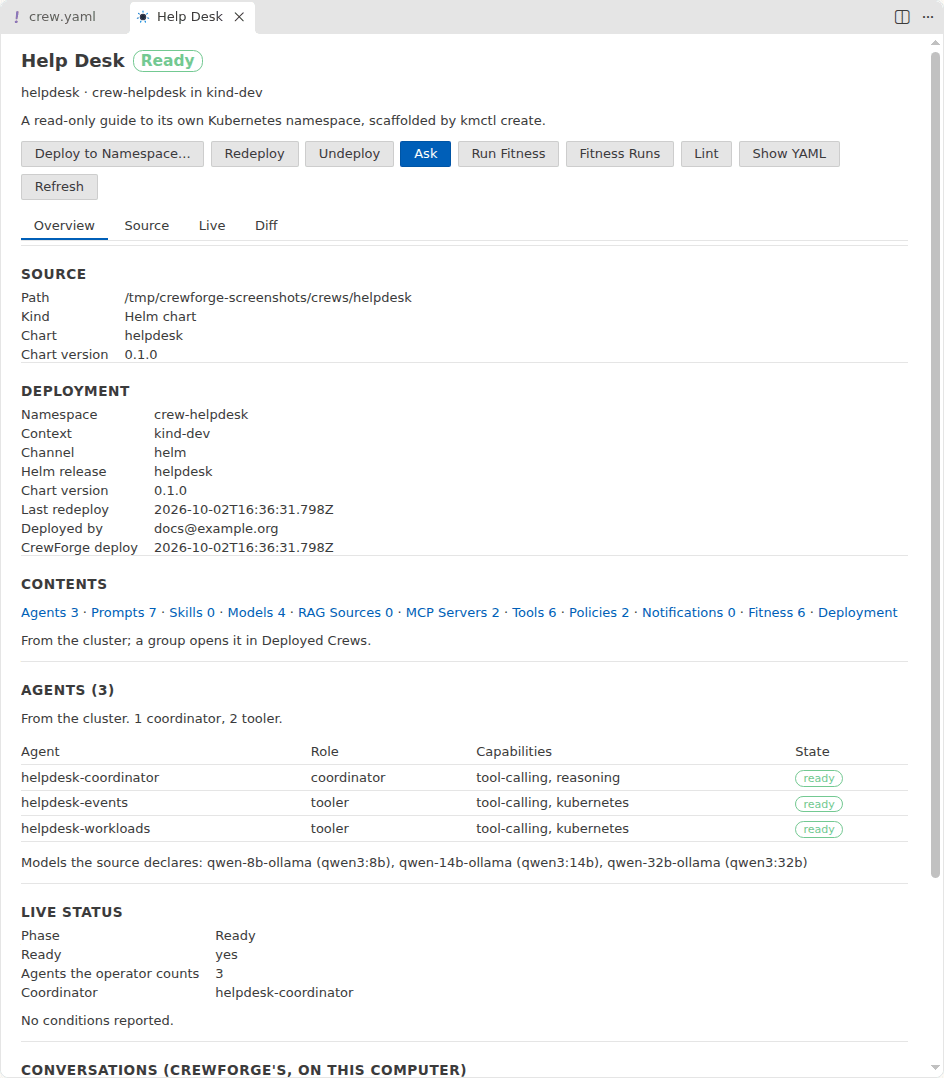
The Overview shows the source, where it is deployed, each agent and whether it is ready, the crew’s phase, and your conversations with it. CrewForge remembers the namespace for Redeploy. A crew can also go to more namespaces; each deployment shows under its source.
6. Ask it something
Choose Ask on the deployed crew, on the source, in the dashboard, or in the status bar menu. A chat opens beside the editor. Type a question and press Enter:
A user cannot connect to the VPN from home. What should I check first?
The send button shows once there is text and the crew can take a question. When the crew is not ready, in an error state, or out of reach, the reason shows above the input and sending waits.
While the crew works, each agent has a card: starting up, queued, analyzing (with the GPU it landed on), then what it found in plain words (“agrees”, “has a concern”, “objects”, “failed”) or “stood aside”.
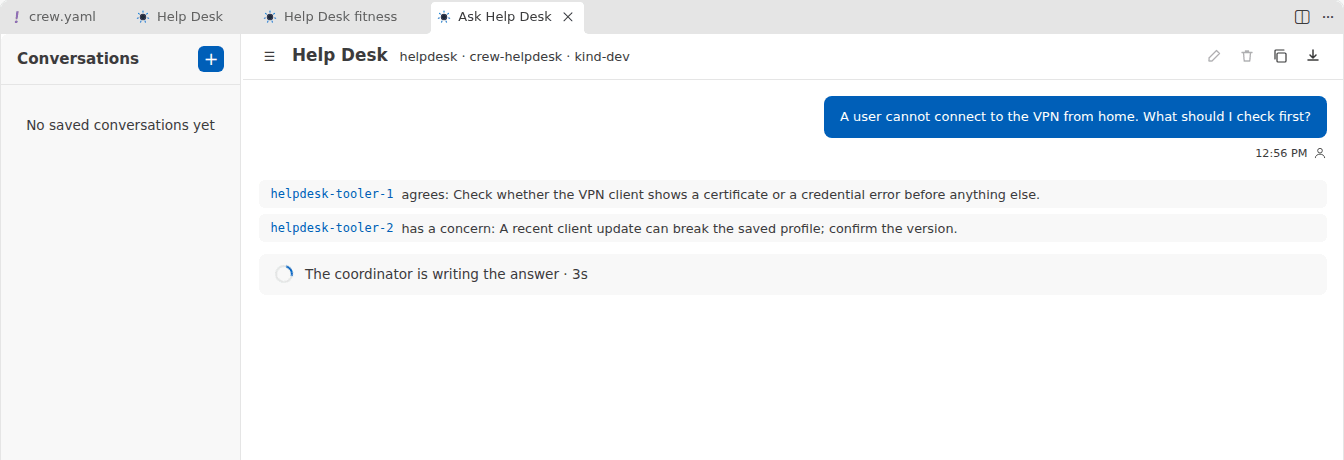
Then the answer follows, with its time and how long the crew took.
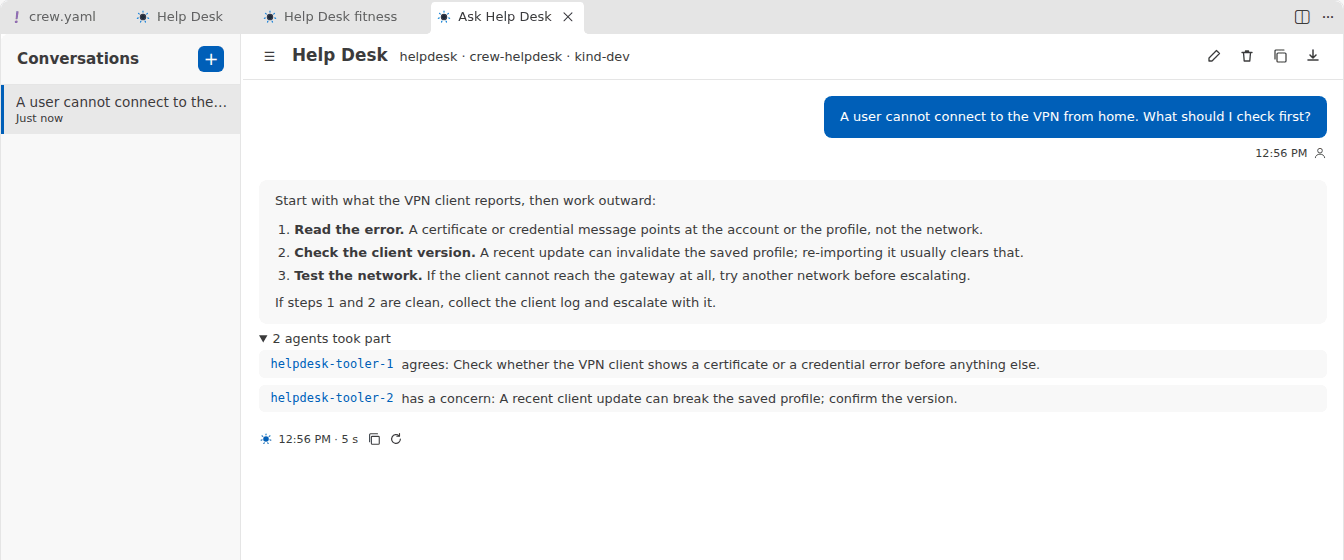
Ask again in the same panel and the crew keeps the conversation’s context. See Views and dashboards for the buttons on each message.
7. Debug a turn
Under each answer, N agents took part lists each agent’s last word in the turn. When the crew’s source is open in the workspace, an agent’s name links to where it is defined: its Agent, then the PromptModules it composes. That takes you from a surprising answer to the prompt that shaped it.
A turn that goes wrong keeps what went wrong under the answer: an agent that failed, could
not run, or had not finished, an error from the crew’s discussion gateway, a timeout, or
a stop. With crewforge.dashboardUrl set, Open this turn in the Kubemoot dashboard
opens the dashboard’s Discussions page for the full thread.
For the objects as the cluster holds them, open the crew dashboard’s Live tab, or choose Show YAML or Show Bundle YAML on the crew.
8. Change it and redeploy
Edit a file, for example the specialist’s PromptModule, and save. The status bar and the source’s line now read deployed in crew-helpdesk, changed. The crew dashboard’s Diff tab shows exactly what differs from what is running.
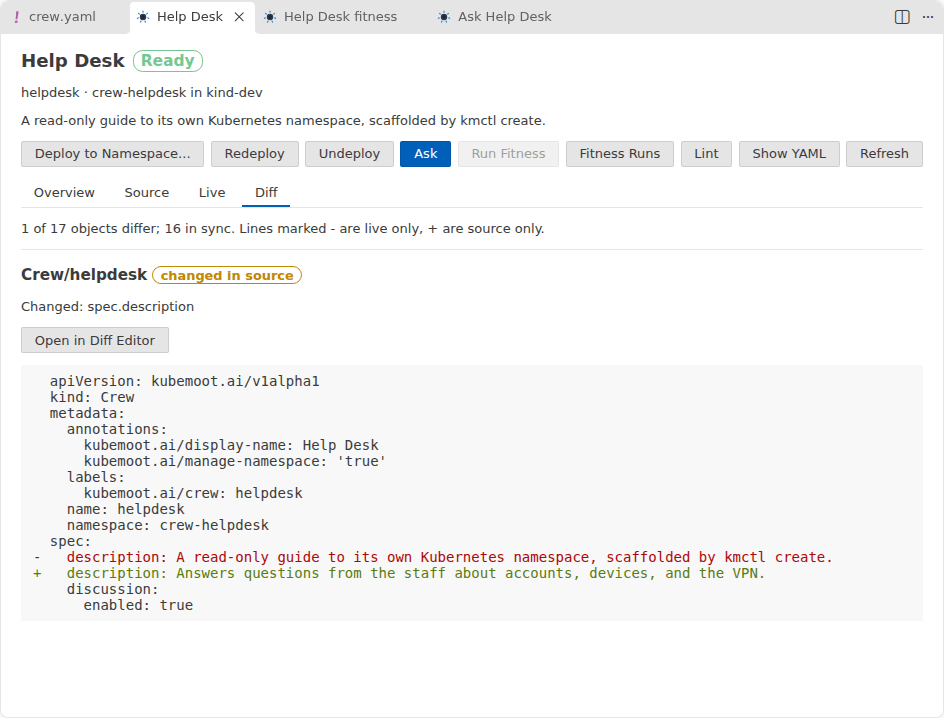
Choose Redeploy (the sync icon on a changed source, or the status bar). It upgrades the release in the namespace you last deployed to and waits for the agents again.
9. Retest
When the redeploy finishes, its notification offers two buttons:
- Re-ask last question asks the same question again in the open chat, or in the newest saved conversation with the crew.
- Rerun fitness runs the fitness definition you ran last, without asking.
Compare the new answer with the old one, or the new fitness results with the previous run. See Fitness from the editor.
10. Finish
- Undeploy removes the crew from a namespace. For a Helm crew it runs
helm uninstalland the operator’s finalizers clean up the rest. The namespace stays unless the crew and namespace opt in to its deletion; see Crew. - Delete Source… moves the crew’s folder to your trash, after a confirmation that names it. If the crew is deployed, it offers to undeploy first.
- To roll the crew out through GitOps, commit it to the repository your cluster watches. Deploy with a Channel… and Follow Flux Rollout cover that outer loop. See Views and dashboards.
Next
- Views and dashboards: every view, tab, and action, and what each changes.
- Fitness from the editor: measure whether the crew does its job.
- Build a Crew: the same workflow at the resource level, from a terminal.